
White Paper | 2026 Edition
Continuous Integration for PowerBuilder
Increase Agility, Productivity, and Security

What is Continuous Integration (CI)?
The concept of continuous integration (CI) is the practice of merging several times a day all developers' working copies to a centralized version, hosted in a shared repository.
Automated deployments lead to continuous delivery (CD), a frequent extension of continuous integration.
In order to deploy reliable releases, continuous delivery involves verifying build compliance with quality, stability and security requirements through automated testing and static code analysis to detect bugs, quality issues and vulnerabilities (SAST).
Each code update is therefore automatically checked and, if accepted, can be deployed in production.
Ultimately, a CI/CD workflow will increase the agility and productivity of your development team as well as code quality and security.
Why Implement CI/CD for PowerBuilder Apps?
Before submitting their code to the repository, developers must first update it to reflect the changes made since they took their copy.
- If they do it frequently, the repository will contain less changes and they will have less work to do before submitting their own modifications.
- The risk of multiple integration conflicts when their code branch is merged back is reduced.
- By testing the code frequently developers will discover bugs sooner. It is less expensive to fix them because developers still have in mind the code they just wrote.
- CI reduces the risk of other teammates building on code containing bugs, which would generate additional bugs and fixing costs.
Continuous Integration / Continuous Delivery Workflow
A typical CI/CD workflow would be composed of the following steps:
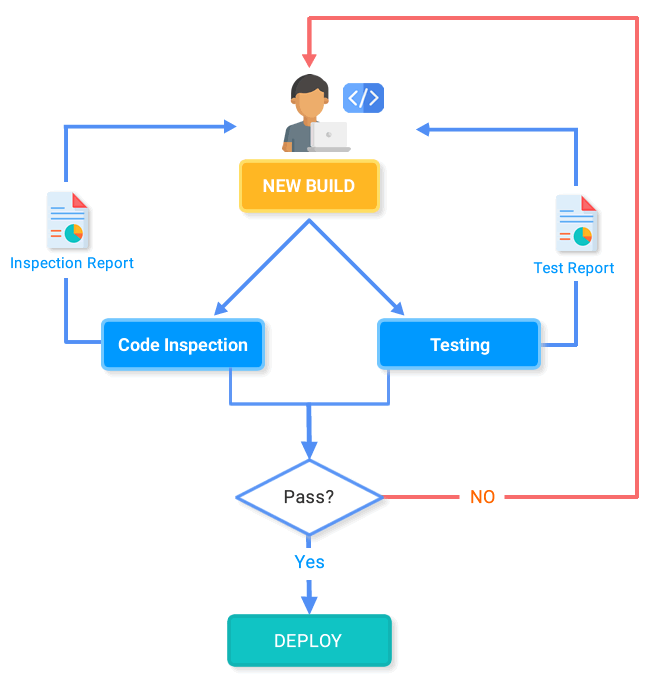

Related article

1. Run unit tests locally
Unit tests can be run manually, or written and automated according to test-driven development practices.
All unit tests should pass in the developer's local environment before incorporating his changes into the main release. This prevents his work in progress from breaking other developer's copies.
Tools & Resources
- PB Unit - Open source Unit testing tool for PowerBuilder
- PowerUnit - Open source Unit testing tool for PowerBuilder
- Discussion about Unit testing tools for PowerBuilder classic code
- Unit Testing C# code with xUnit Test in PowerBuilder 2019
- PbTest: A Simple, Open-source, XUnit-based Unit Test Tool for PowerBuilder (Elevate Conference)
2. Commit changes and generate a build
Developers submit their changes to the repository and merge their branch of code back into the main version.
A build server compiles the code periodically or even after every commit and reports the results to the developers.
PowerBuilder 2025 and 2025 R2 enhance continuous integration with a new high-performance compiler (CloudPro and Professional editions) and simplified automation processes.
Recent versions of PowerBuilder offer a range of features simplifying this process:
PBAutoBuild Compilation Tool
PBAutoBuild is PowerBuilder's standalone command-line build tool, available since PowerBuilder 2021. It compiles and deploys projects outside the IDE, which makes it the entry point of a CI/CD workflow. It requires neither the PowerBuilder IDE nor a PowerBuilder license on the build machine, only PowerBuilder Utilities and PowerBuilder Runtime (plus PowerServer Toolkit for PowerServer projects).
PBAutoBuild can build:
- Client/Server applications
- PowerClient projects
- PowerServer projects
In PowerBuilder 2025, the PowerBuilder Compiler (PBC) is integrated into PBAutoBuild250.exe: existing PBC scripts keep working by adding the /pbc parameter. PBAutoBuild also adds a "deploy only" option.
If you are using PowerBuilder 2019 or 2017, refer to this article to learn how to use the previous tool "PowerBuilder Compiler".
Source Control Systems Integration
PowerBuilder also integrates natively with source controls like GIT, SVN or external SCC-compliant source control systems. This simplifies sharing a common version of the code and fetching it for CI/CD purposes.
Note: The SCC API and PBNative work only with the traditional workspace format; the solution format introduced in PowerBuilder 2025 supports Git and SVN.
ORCAScript Language
The ORCAScript language is meant to perform source control operations and build PowerBuilder libraries, workspaces and executables without human intervention.
ORCAScript compilation applies to the workspace format only: solutions are built with PBAutoBuild.
Tools & Resources
- PBAutoBuild tool
- Using GIT with PB 2025 (Previous versions: PB 2021, PB 2019, PB 2017)
- Using SVN with PB 2025 (Previous versions: PB 2021, PB 2019, PB 2017)
- PB 2025 Orcascript Language (Previous versions: PB 2021, PB 2019, PB 2017)
- Building a client/server application with commands
- Building a PowerClient project with commands
- Building a PowerServer project with commands
- Implement CI/CD for PowerBuilder with automation servers
3. Verify the Code
Code verification uses static analysis to identify security vulnerabilities, bugs, performance problems, and quality issues by checking source code against predefined rules. In a CI/CD workflow, the results help teams assess code quality and determine whether a build is ready for deployment.
As AI assistants accelerate code development, ensuring code quality becomes even more important. Every change needs to be verified, whether the code was written by a developer or generated by AI. Automated verification provides a consistent, independent check across the entire codebase.
But detecting defects is only the first step. Improving code quality requires a continuous process: verify the code, review and prioritize findings, assess the impact of proposed fixes, remediate, and verify again to confirm their resolution.
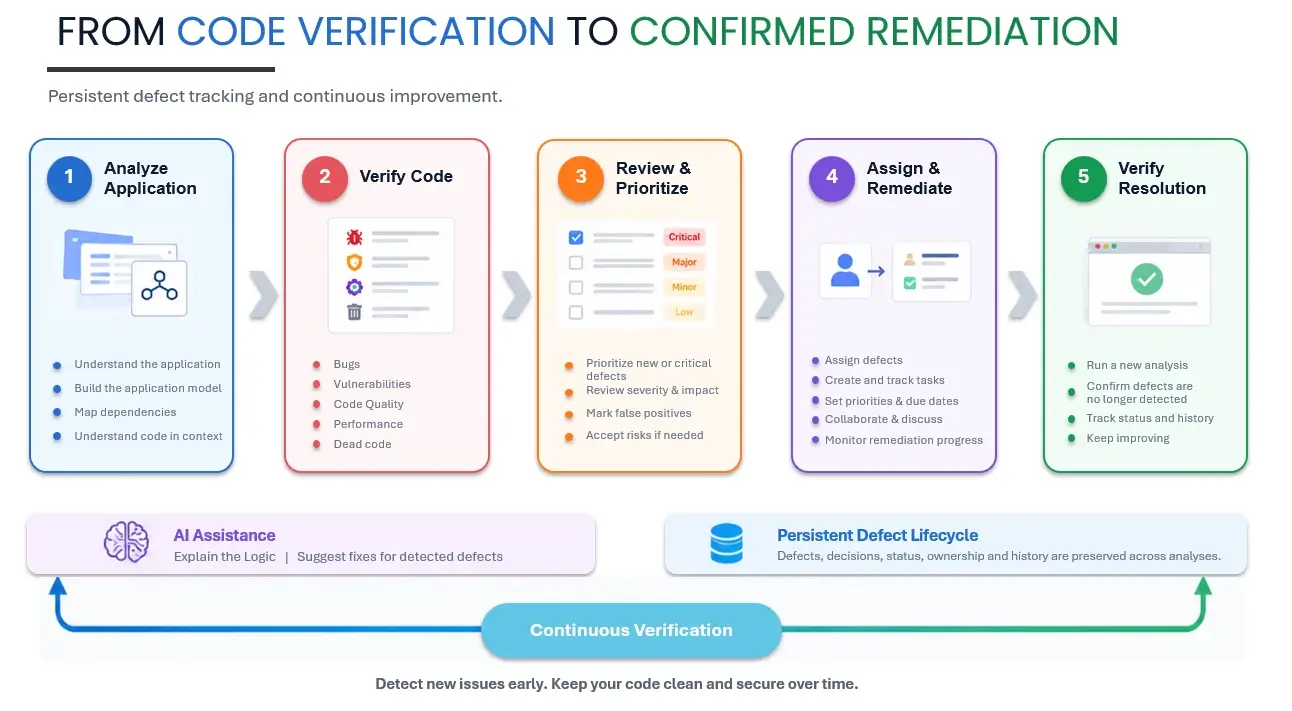
Verify the code on every build
In a CI/CD workflow, verification must run automatically on each build, cover both application and database code, and produce results that help decide whether the build can be deployed.
For example, Visual Expert can be used to verify PowerBuilder and database code:
- Analyzing source code from GIT, SVN, Azure DevOps Server (formerly TFS), Windows folders, Oracle or SQL Server.
- Detecting security vulnerabilities, bugs, code quality and performance issues, and dead code.
- Summarizing each analysis in a defect dashboard showing active, new, critical, and resolved defects, together with changes since the previous analysis. These indicators help teams assess whether the build meets their release criteria.
- Providing detailed code review reports that locate each defect at the instruction level.
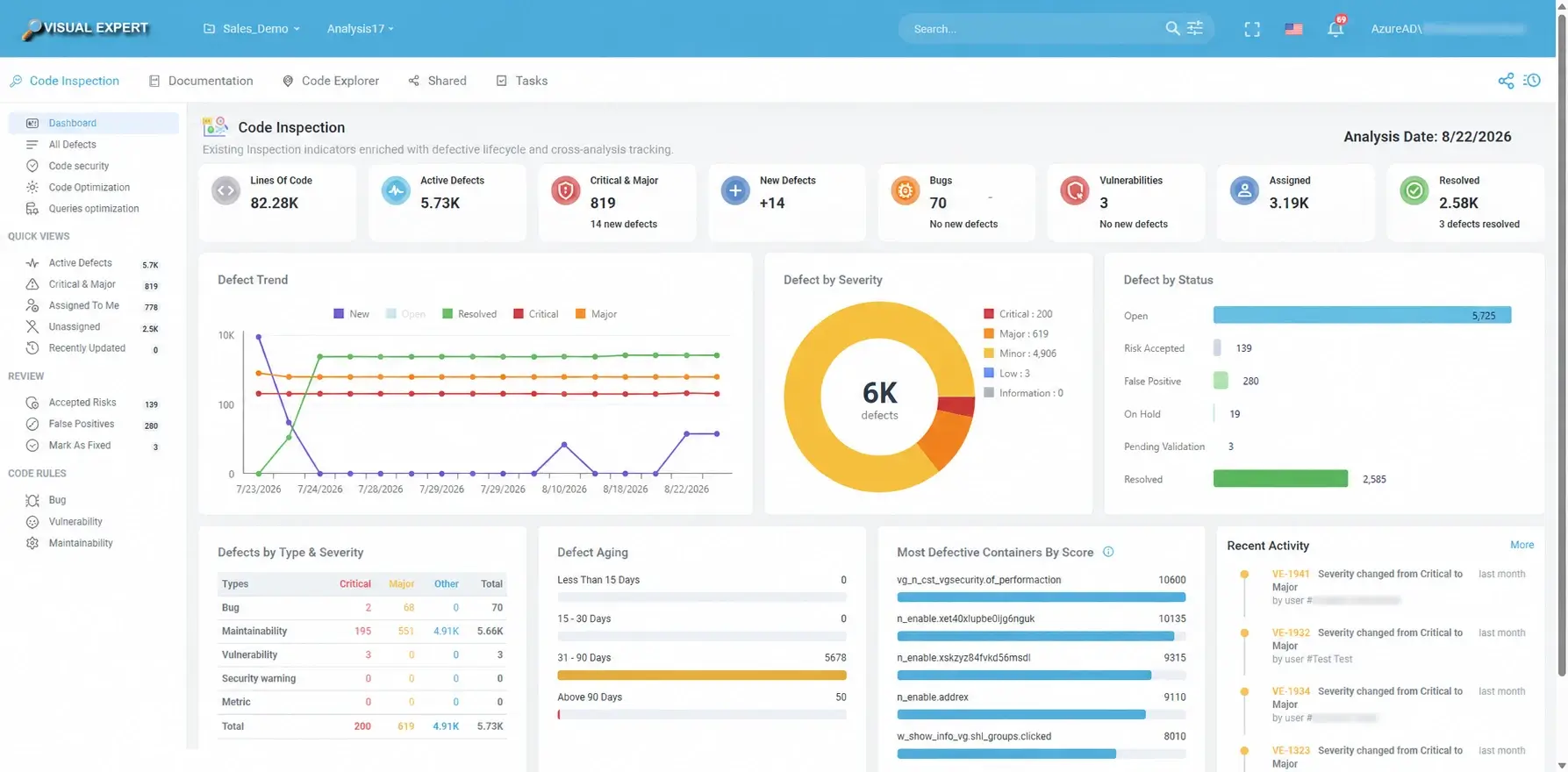
Defect dashboard: quality indicators and trends across analyses
Manage defects from detection to resolution
As an application grows, a single verification can report hundreds of findings. Without a structured process, these findings are difficult to prioritize, ownership remains unclear, and progress on remediation is hard to measure. Teams therefore need a way to:
- Prioritize: Identify which defects and vulnerabilities to address first, based on their severity
- Qualify: Mark false positives and accepted risks so these decisions are preserved across subsequent analyses
- Assign: Distribute remediation work among team members
- Track: Follow each defect until it is resolved, and confirm that critical issues are closed before release
- Monitor: Measure overall code quality across successive analyses to see whether it is improving
Visual Expert supports this process by preserving defects, decisions, status, ownership, and history across successive analyses.
Assess impact before fixing
In PowerBuilder and database applications, a single object, procedure or table is often used in many places. Changing it without knowing what depends on it can introduce new defects elsewhere.
Before applying a fix, teams need to see what the change will affect. For example, Visual Expert impact analysis shows which objects, procedures and tables depend on the code being modified, helping teams define the scope of the change and the tests required afterward.
Remediate with AI assistance
AI assistance can speed up remediation, provided every proposed change is reviewed by a developer and verified again.
For example, with Visual Expert AI, developers can use Suggest a Solution on a defect from the verification results. Visual Expert proposes corrected code, together with inline comments and an explanation of the changes to help developers review the proposed fix. Developers stay in control: they review the proposal, adapt it if needed, and apply it.
When the code is unfamiliar, Explain the Logic can also provide a summary of what a function or procedure does.
Confirm the resolution
A fix is only complete once it has been verified. A new analysis confirms that the defect is no longer detected, and its status and history are updated. Repeated on every build, this continuous verification helps detect regressions early, prevents unresolved defects from accumulating, and maintains code quality and security over time.
Tools & Resources
- Continuous Code Verification and Remediation with Visual Expert
- Defect Dashboard in Visual Expert
- Find Security Vulnerabilities in PowerBuilder Code
- List of code verification rules
- Impact analysis with Visual Expert
- Visual Expert AI: AI-assisted code analysis
- Verify PowerBuilder Code using automation servers
4. Test the build - Continuous Testing
Continuous integration aims at automating tasks to verify and generate deployable builds as often as possible.
Testing is an essential step in this process, and test automation is necessary to achieve this goal: each build will be thoroughly tested and indicators generated automatically will help assess if the build is deployable.
Why Automate Testing?
Obviously, every team tests its products.
Yet all delivery includes defects.
Testers strive to catch them: some always remain, while others reappear, no matter how thorough the manual testing.
A test automation tool is a very efficient way to supplement your manual testing, for improving the efficiency and coverage of your testing operations.
Read more: steps to create automated tests
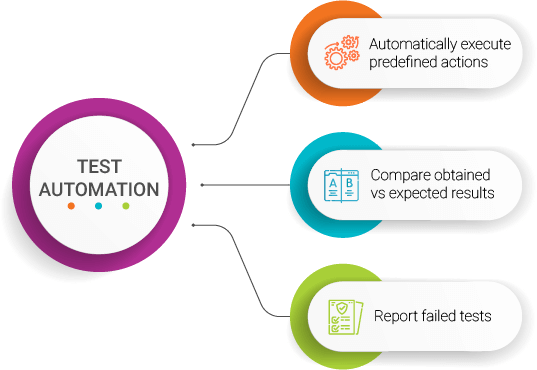
Is test automation productive?
Previous generations of tools had the reputation of requiring too much effort to create and maintain tests, which defeated the purpose of gaining productivity.
They were often based on 2 strategies:
- Developing scripts to specify tests - expensive to develop.
- Recording test actions on screen - easy to create, but not resistant to GUI changes and too expensive to maintain.
Modern tools offer a different approach, based on object recognition:
- Scanning the code to identify objects
- Defining test actions by selecting an object and a type of action (click a button, enter a value in a field…). Much simpler than writing scripts, coding skills are no longer required.
- Because objects are stable, tests are very resistant to UI change. Maintenance costs are much lower than recording tools.
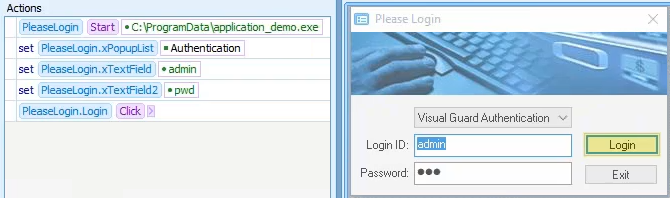
This example of automated test will start the application, select an authentication method, enter credentials, and click on the login button.
Read More
- Object-based testing vs. Recording-based testing
- Automated Testing & Application Lifecycle Management
Automated Vs. Manual testing
Let's compare both strategies with critical KPIs:
| Manual | Auto | ||
| Accuracy | ❌ | ✓ | Manual Testing is less accurate because of possible human errors. Automated testing is consistent and reliable. |
| Productivity | ❌ | ✓ | Running many manual tests is time-consuming and expensive. Automated tests are faster. No additional costs to repeat as many times as needed. |
| Startup | ✓ | ❌ | You can start executing manual tests instantly. Automated testing requires preliminary time to predefine tests and actions. |
| Flexibility | ✓ | ❌ | Manual testing is more flexible: it allows testing randomly or improvising deeper tests on the fly in a very specific area. Automation Testing does not. |
Automated Testing obviously brings major benefits but cannot fully substitute for manual testing.
The best strategy consists in wisely combining the 2 approaches depending on:
- the nature and stability of the tests
- the time available for the creation of automated tests
- the existence of a Continuous Integration Workflow
- ...
To go further:
- Structuring manual testing in conjunction with Automated testing
- Continuous testing in a CI/CD workflow
Automated testing for PowerBuilder
You can use AscentialTest to automate the test of PowerBuilder and PowerServer applications
- Integration with SVN through version control.
- Integration with JIRA through defect tracking.
- Command line for running tests from automation servers such as Azure DevOps (including Azure DevOps Server, formerly TFS) and Jenkins.
- AscentialTest plug-in for Jenkins and pipeline task extension for Azure DevOps.
Tools & Resources
- Test automation for PB (PowerBuilderTV)
- Automate the tests of PowerBuilder Applications
- Testing PB 2019 With AscentialTest (Appeon doc)
- Testing PowerServer Applications (Appeon Doc)
- AscentialTest Built for Agile, DevOps and Continuous Integration
- Test automatically a PowerBuilder build using automation servers
- Test automatically a PowerBuilder build using Azure
5. Localize your Application
Modern tools make it possible to automate various tasks in a CI/CD workflow. Multilingual support is now one of them.
If your application is deployed in several countries, you probably translate it to better serve users. And once in production, you have to systematically update translations, to maintain a consistent user experience.
Tools & Resources
Enable for PowerBuilder separates translations from code, and includes specific features to integrate in a CI/CD pipeline:
- Extracting new strings and importing them into the multilingual database
- Exporting phrases and translations to a file (Json, XML, Excel)
- Importing translations from a file (Json, XML, Excel)
You can add a multilingual task to your workflow, for example:
- Extracting and loading new phrases into the multilingual database.
- You can optionally pre-translate them if the translation memory has translations.
- Importing translations into the multilingual database.
- Generating a NEW BUILD with multilingual phrases updated
Note: phrases are usually translated by professional translators. They will send back the translations, for automatic import into the multilingual database. This second process is independent of the build process.
Note: AscentialTest provides a test translation feature so that the same set of tests can be used to test the target application across supported languages.